Pure Simulation: Object Detection
This section describes how to use AdvantageScope to simulate detection of objects (game pieces) on the virtual field.
Make sure that all of the setup has been completed first.
Start-up
- Start the simulation session. Click here for detailed instructions on startup.
- In AdvantageScope, use the
2D Fieldand/or3D Fieldtab to view the location of the robot and lines of sight to objects detected on the field. Click here for instructions on how visualize the poses of the robot and object vision targets. - Add
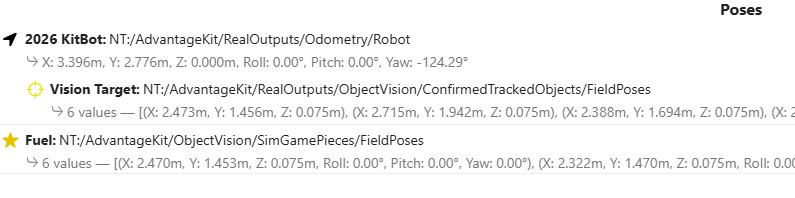
RealOutputs/ObjectVision/ConfirmedTrackedObjects/FieldPosesto the AdvantageScope poses so that lines of sight are displayed from the camera to detected objects. - Add
ObjectVision/SimGamePieces/FieldPosesto the AdvantageScope poses so that the detectable game pieces are displayed on the virtual field. See game piece definition for how to define where these game pieces should be displayed.
See below for the complete set of poses for:
- Robot
- Lines of sight from camera on the front of the robot to detected objects
- Detectable objects
Simulating
As the robot moves around the virtual field, whether in Teleop or Autonomous mode, game pieces will be detected if they are in the field of view of the object camera. In the picture below on the left, the robot is near detectable fuel objects but the camera is not pointing toward them so nothing is detected. The picture on the right shows that fuel is detected once the robot rotates so that the camera is facing some of the objects. 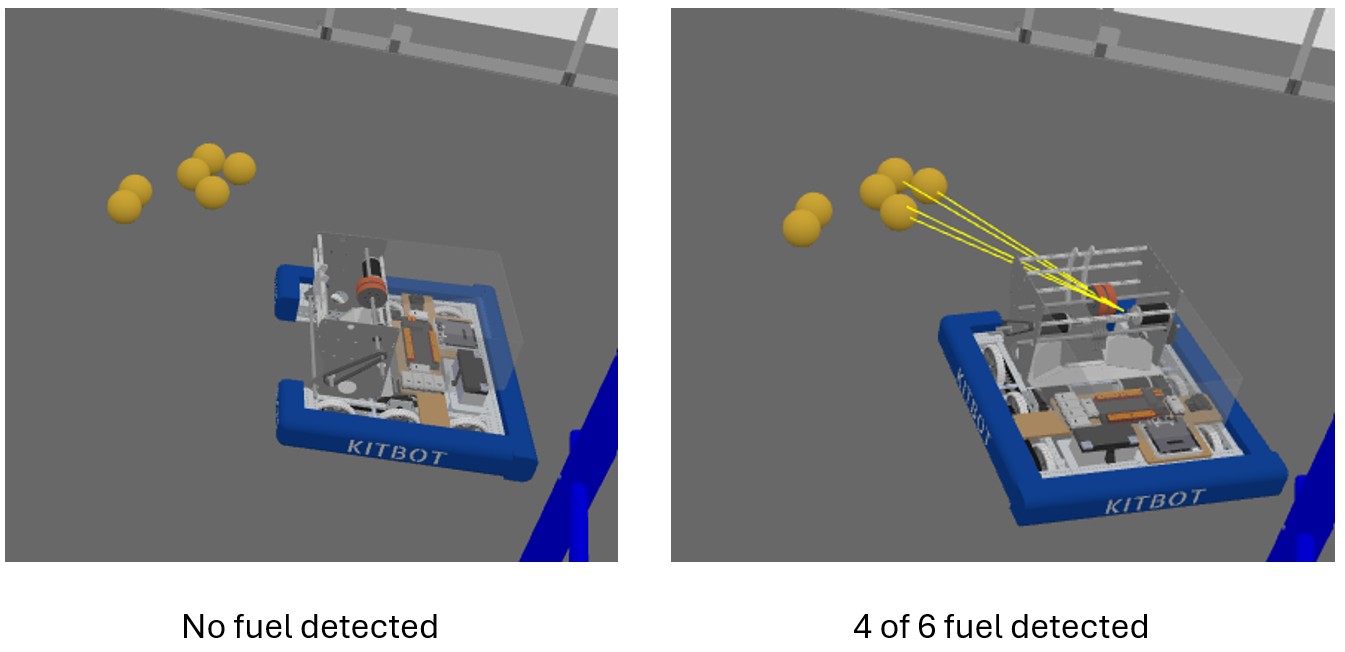
Drive to Object
The main reason for detecting game pieces on the field is to automate how the robot interacts with them. As an example, a command could determine a drive path to intake the maximize number of detected fuel in the vicinity of the robot. MonarchVision has a simple command called DriveRobotFeatureToTarget to illustrate such a task. The command does the following:
- Categorizes detected fuel into clusters
- Prioritizes the clusters
- Computes a drive path such that a feature on the robot (such as an intake) passes through the center of the cluster
Troubleshooting
Double check your setup. The most likely issues are:
hardwareInTheLoopis set to true inObjectVisionConstants.java- AdvantageScope is not connected to the NetworkTables simulator